
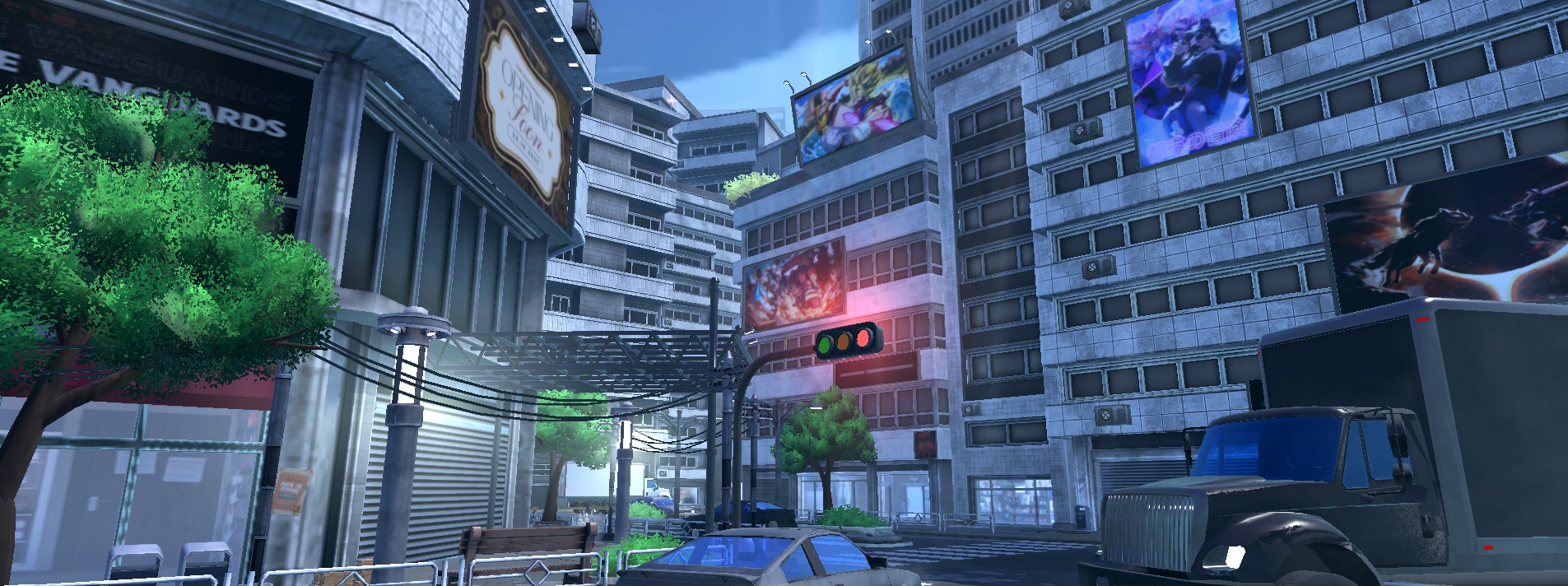
Lighting Is Your Most Powerful Tool
Horror lives and dies by lighting. Switch Roblox's Lighting.Technology to Future or ShadowMap for real-time shadows. Set Lighting.Ambient and OutdoorAmbient to near-black values (5, 5, 8 works well) so the world is genuinely dark outside light sources. Give the player a flashlight using a SpotLight attached to the character's head or a tool, with a narrow Angle (35-45 degrees) and limited Range (40-60 studs). This creates a cone of safety surrounded by darkness, which is inherently tense. Use PointLights sparingly in the environment to create pools of warm light that the player gravitates toward. Flickering lights are a staple: animate a PointLight's Brightness between 0 and its max value on a random timer using TweenService. Atmosphere instances add fog and haze. Set Atmosphere.Density to 0.3-0.5 and Atmosphere.Color to a desaturated blue or grey to limit visibility and create claustrophobia.
Sound Design: The Engine of Fear
Sound does more work in horror than any other genre. Layer three categories of audio: ambient drones (low-frequency continuous sounds that set unease), environmental sounds (dripping water, distant metallic clangs, floorboard creaks), and stingers (sharp one-shot sounds that spike tension on events). Use Sound instances parented to Parts in the world with RollOffMode set to InverseTapered so audio fades naturally with distance. The player should constantly hear something faint and indistinct. For footstep sounds, detect the material under the player using a downward Raycast and swap the footstep SoundId accordingly: concrete, wood, metal, and wet surfaces each have a distinct feel. Silence is equally important. Drop all ambient sound for 3-5 seconds before a major scare. The sudden quiet makes the brain hyperalert, amplifying whatever comes next.
AI Stalker Enemies: Pursuit Without Frustration
The stalker enemy is the defining mechanic of most Roblox horror games. The key is making it feel relentless without being unfair. Use PathfindingService to navigate the enemy toward the player, recomputing the path every 1-2 seconds. Set the agent parameters to match the enemy's size and ensure the NavMesh covers your map by testing with PathfindingService:CreatePath() and checking the path status. Give the enemy distinct states: Patrol (wanders predefined waypoints), Investigate (moves to the player's last known position after hearing or seeing them), and Chase (direct pursuit with increased speed). Use line-of-sight raycasts from the enemy's head to the player to trigger state transitions. The enemy should lose the player if line of sight is broken for 5-8 seconds, creating hiding gameplay. Add audio cues tied to the enemy's proximity: a heartbeat sound that increases in volume and speed as the enemy gets closer, controlled by the distance between the enemy and the player on the client.
Jumpscares, Scripted Events, and Pacing
Jumpscares are effective exactly once per play session before they become annoying. Use them sparingly. A far more sustainable approach is scripted environmental events: a door slamming shut behind the player, a mannequin that changes position when the player looks away (check if the character's LookVector faces away from the mannequin), lights going out in sequence as the player walks down a hallway. Trigger these with invisible trigger zones using Part.Touched or by checking player distance on a heartbeat loop. For pacing, follow a tension curve: start quiet to establish normalcy, introduce small disturbances (sounds, flickering lights), escalate to a direct encounter or chase, then give a brief reprieve before building again. Chapters or sections work well for structuring this. Never sustain maximum tension for more than 60-90 seconds or players go numb.
- Trigger zones with Touched events for scripted scares at specific locations
- LookVector checks to move objects only when the player is not looking
- Sequential light failures using TweenService with staggered delays
- Cooldown flags on each scare event so they only fire once per session
Camera Tricks and Screen Effects
Manipulating the camera adds a layer of disorientation that amplifies fear. Use Camera.CameraType = Scriptable to take full control, then tween the camera's CFrame for forced perspectives during scripted moments: looking slowly toward a doorway, tilting slightly off-axis to create unease, or snapping to a security camera view. For screen effects, ColorCorrectionEffect with reduced Saturation and shifted TintColor toward cold tones makes the world feel lifeless. Add a slight vignette by overlaying a transparent Frame with rounded corners and a dark gradient over the player's ScreenGui. For glitch effects during encounters, rapidly toggle a full-screen ImageLabel with static noise on and off for 0.1-0.2 second bursts. Keep these subtle. Overusing post-processing effects makes the game look like a filter app rather than a horror experience.