Step 1: Install Roblox Studio
Roblox Studio is the free development environment where you build everything. Download it from the Roblox website and sign in with your Roblox account. When you open Studio, you will see template options — start with a Baseplate for a blank canvas or choose a themed template to get a head start. Take a few minutes to learn the interface: the Explorer panel shows your game's hierarchy, the Properties panel lets you edit objects, and the viewport is where you build visually. Learn the camera controls early — hold right-click to rotate, WASD to move, and scroll to zoom.
Step 2: Build Your Game World
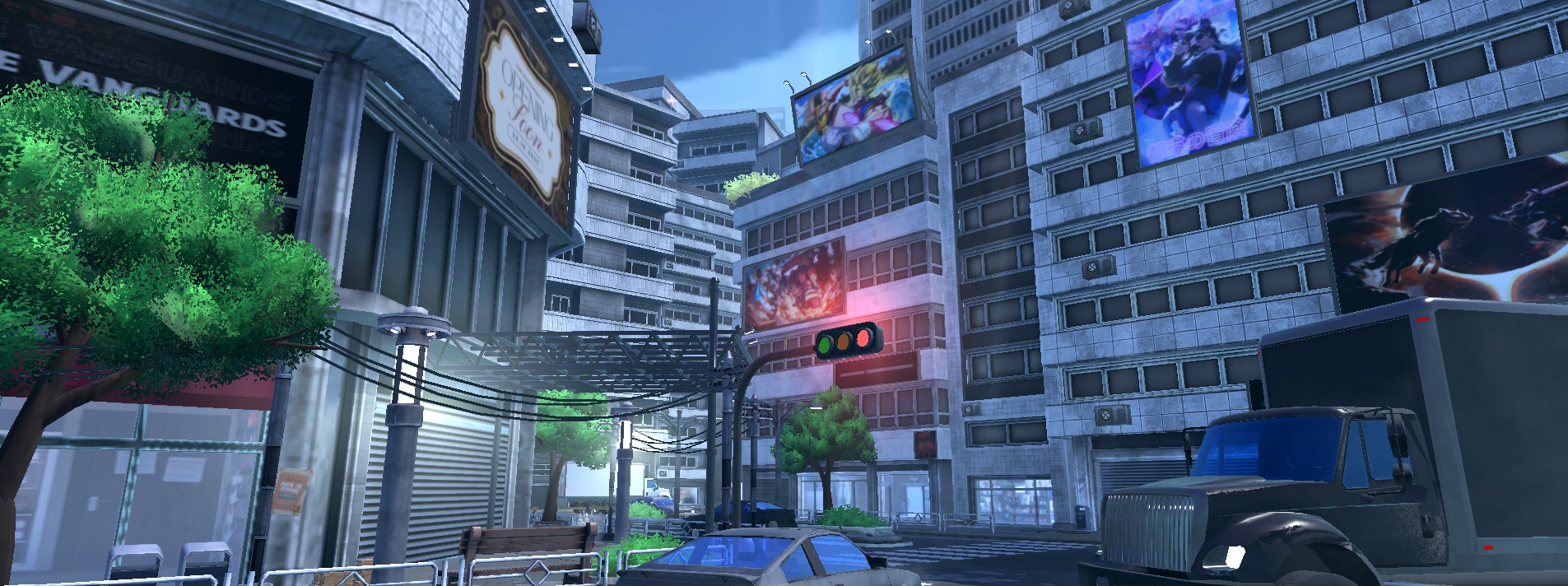
Every Roblox game needs an environment for players to interact with. Start with Parts — the basic building blocks. Insert parts from the Model tab, then resize, rotate, and recolor them to create floors, walls, platforms, and structures. Use the Terrain Editor for natural landscapes like mountains, water, and grass. For a polished look, apply Materials to parts (brick, metal, wood, neon) and adjust Lighting in the Explorer panel. The single biggest visual upgrade is switching from ShadowMap to Future lighting technology — it makes everything look dramatically better with zero extra work.
- Use Anchor on parts that should not move when the game runs
- Group related parts into Models for organization
- Use the Snap tool (increments in the Model tab) for precise building
- Enable Streaming Enabled in Workspace properties for larger maps — it loads parts as players approach them
- Test frequently with the Play button to see how your world feels from a player perspective
Step 3: Learn Basic Scripting
Scripts make your game interactive. Roblox uses Luau, a fast version of the Lua programming language. There are three script types: Scripts run on the server and control game logic, LocalScripts run on each player's device and handle UI and input, and ModuleScripts contain reusable code that both can access. Start simple — insert a Script into ServerScriptService and write code that prints a message when a player joins. Then progress to handling touch events, moving parts, and responding to player input. You do not need to master scripting before building — learn as you need it.
- game.Players.PlayerAdded — fires when a player joins your game
- part.Touched — fires when something touches a part
- UserInputService — detects keyboard, mouse, and touch input on the client
- TweenService — smoothly animates part position, size, color, and transparency
- Use the Output panel to see print() messages and errors while testing
Step 4: Add Gameplay Systems
A world without gameplay is just a showcase. What makes your game a game is the core loop — the thing players do repeatedly. For a fighting game, it is combat. For an obby, it is platforming. For a tycoon, it is earning and spending currency. Build your core loop first before adding secondary features. Keep it simple: a single well-polished mechanic is better than ten half-finished ones. If you are building combat, focus on making attacks feel good before adding 50 different weapons. If you are building an obby, make 10 great stages before worrying about a leaderboard.
- Fighting game: hitbox system, animations, health, damage
- Obby: checkpoints, kill bricks, stage progression
- Tycoon: currency, purchasable upgrades, visual progression
- RPG: quests, NPCs, inventory, leveling
- Horror: atmosphere, AI enemies, puzzles, jumpscares
Step 5: Polish with Professional Assets
Polish is what separates games that retain players from games that get abandoned after 30 seconds. Custom animations replace the generic default movement and make your game feel unique. Visual effects communicate feedback — hit sparks, healing glows, ability particles. Sound effects add weight to every action. A custom UI replaces the default Roblox look with something that matches your game's identity. Building all of these from scratch takes months. Professional asset packs give you production-quality animations, VFX, sound, NPCs, and UI in minutes — letting you focus on what makes your game unique.
Step 6: Test and Iterate
Playtesting is the most important step most beginners skip. Hit Play in Studio to test solo, but also use the Test tab to simulate multiple players. Better yet, publish a private version and invite friends to play. Watch what confuses them, where they get stuck, and what they enjoy. Every successful Roblox game was shaped by playtesting. Common things you will discover: your game is harder than you think, players do not read instructions, mobile players need bigger buttons, and your spawn location matters more than you expect. Fix these before your public launch.
Step 7: Publish and Monetize
When your game is playable and fun, publish it. Go to File > Publish to Roblox, set your game's name, description, and icon. Write a description with keywords players search for — this is SEO for Roblox's discovery page. Create a compelling thumbnail and icon since these are the first thing players see. For monetization, Roblox offers Game Passes for one-time purchases (like a VIP pass or extra inventory slots) and Developer Products for repeatable purchases (like in-game currency). Start with 2-3 monetization options that enhance gameplay without being pay-to-win. You earn Robux from sales, which can be converted to real money through Roblox's DevEx program once you qualify.
Common Mistakes to Avoid
New developers consistently fall into the same traps. Here are the most important ones to avoid:
- Scope creep — your first game should be small and finishable, not an MMO
- Trusting the client — never let LocalScripts control damage, currency, or game state. The server must validate everything
- Ignoring mobile — over 70% of Roblox players are on mobile. Test your game on a phone
- No save system — if players lose progress, they will not come back. Use DataStoreService or ProfileStore
- Skipping polish — default animations, no sound effects, and generic UI make your game feel unfinished
- Using free Toolbox models without inspecting scripts — they often contain backdoors and malicious code